Expertise · · 11 min read
Business process automation: where to start and where your company loses time
Why an approval with an hour of work in it takes a week. We explain BPMN in plain words, show how to map a process in an hour and what to measure after launch, and walk through how it all works in Adeptio TaskManager.
An employee submits a leave request on Monday. The head of department signs it on Wednesday, because he spent two days out on site. Accounting hears about the leave on Friday from the team chat. The order is ready a week later, and the whole time the employee keeps asking where his paperwork is. Add up the actual work everyone did and you get about forty minutes. The rest of the week was spent waiting.
Most internal processes work this way: approving a purchase, an invoice or a contract, onboarding a new hire, a ticket to the IT department. A task spends most of its time not being worked on but sitting between people. Nobody is holding it, and nobody can see where it got stuck.
Work and waiting: where the time really goes
Lean manufacturing has a simple exercise. You take one process and measure two times: how long it takes from start to finish, and how much of that time people actually spent working on it. The gap is usually striking. The process runs for a week, but it contains an hour of work.
Waiting builds up in three places:
- Handover. Someone has finished their part and does not know who to pass it to. Or they know, but that person is on leave.
- Queue. The task arrived in a messenger and sank under newer messages. The person will remember it when someone reminds them.
- Rework. Someone found a mistake in the document and sent it back. Nobody wrote down who should fix it or by when.
Telling people to "work faster" fixes none of these. They are busy as it is. What fixes them is a clear route: who takes the next step, by what deadline, and what happens if the step is not done.
Five signs a process is ready for automation
- The process runs at least a few times a month and follows the same pattern every time.
- It has more than two participants, and they come from different departments.
- People ask "what stage is my request at?" more often than you would like.
- The latest version of a document has to be dug out of chat threads.
- The manager learns about a delay after the deadline has already passed.
If three of the five apply, the process is worth mapping and moving into a system. Start with one: the most frequent and the most irritating.
BPMN in plain words
BPMN stands for Business Process Model and Notation. It is an international standard for drawing process diagrams. It sounds complicated, but five elements cover most needs:
- Start and end events. Circles at the edges of the diagram that show what starts the process and what ends it.
- Task. A rectangle with one action and one performer, such as "approve leave" or "prepare the order".
- Exclusive gateway. A diamond with an X. The process follows one of several branches depending on a condition. For example, if the amount is above the limit, the director approves; otherwise the accountant does.
- Parallel gateway. A diamond with a plus sign. The work splits into several branches at once, for example the lawyer, the finance officer and the security team review a contract on the same day. The process then waits until all of them are done.
- Sequence flow. Arrows that show the order of steps. An arrow pointing back means the item is returned for rework.
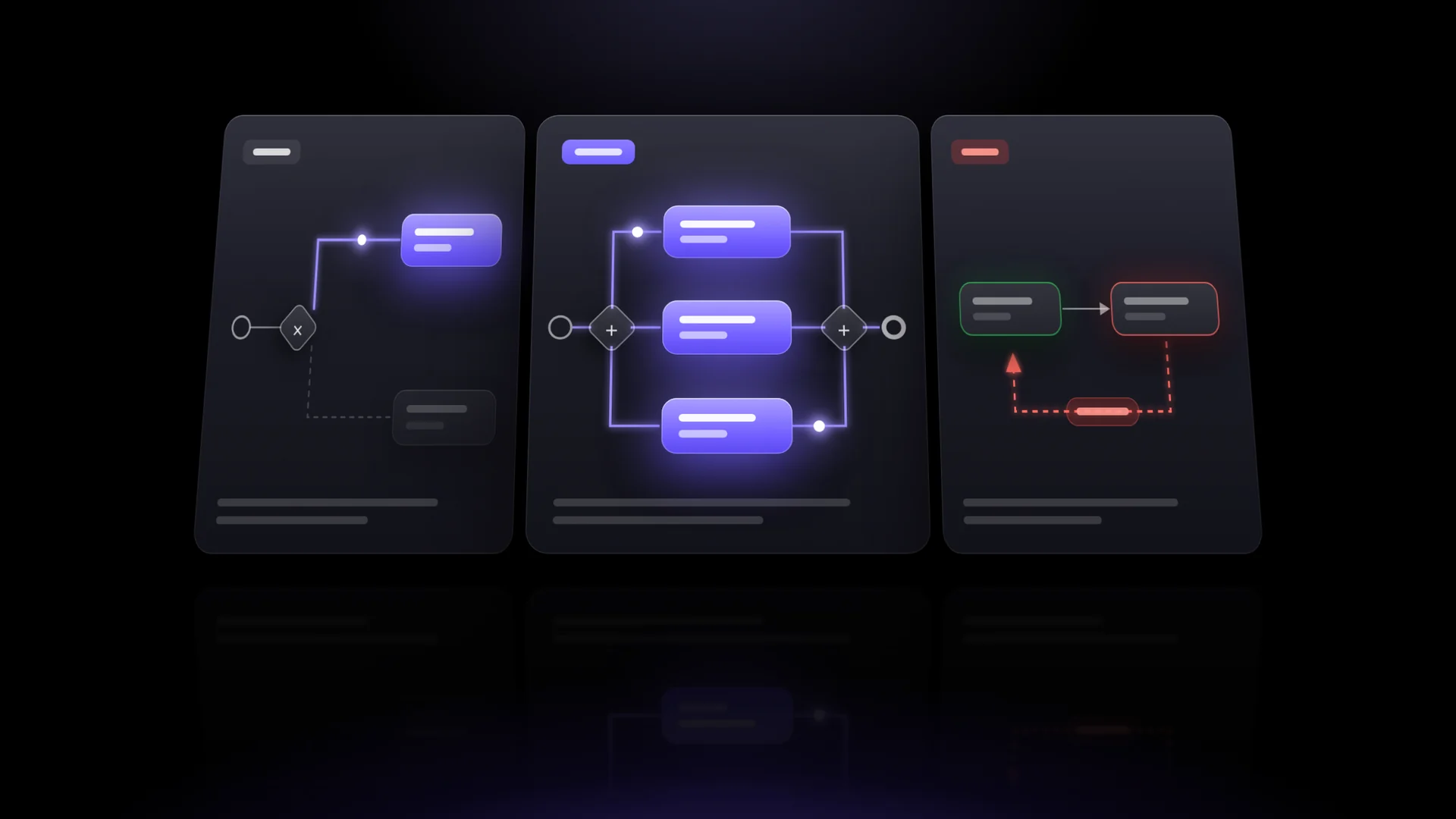
The real value of the notation is not that the diagrams look good. A BPMN diagram is unambiguous: a manager, a performer and a program all read it the same way. That means a process can be run from it automatically.
How to map a process in an hour
Your first process does not need consultants or a thick procedures manual. You need the people involved and a whiteboard or a sheet of paper.
- Draw the process as it actually runs, not as the manual says it should. Ask each participant who they get work from and who they hand it to.
- Give every step a single performer. If a whole department is responsible, the task will stall. Assign a role instead: head of department, accountant, lawyer.
- Write down the conditions. Wherever someone says "it depends", there is probably a gateway hiding. Find out what the route depends on.
- Set a deadline for each step. For each step, not for the whole process. That way you can see exactly who is holding things up.
- Remove what is not needed. Almost every process has an approval nobody can explain. You can drop it before you automate anything.
Four mistakes that stop automation from taking off
- Automating chaos. If the process has no order, the software will repeat the mess quickly and neatly. Diagram first, system second.
- Mapping everything at once. Twenty processes in a month will not take off. One process that has become a habit convinces the team better than any presentation.
- A process without an owner. Every process needs a person who is responsible for keeping it working and who updates the diagram when reality changes.
- Not measuring. Without numbers, in three months nobody will be able to say whether things got better.
What to measure after launch
Four metrics are enough:
- cycle time of the process from start to finish;
- the step where work sits idle the longest;
- the number of returns for rework, which shows where tasks are poorly defined;
- workload: who has tasks piling up and who has spare capacity.
The last one often surprises managers. A process slows down not because the diagram is bad, but because half of all approvals go through one person.
How it works in Adeptio TaskManager
At Guidejet TI we build Adeptio TaskManager for exactly these tasks. Here is, step by step, what you can already do in it today.
Draw the process diagram right in the browser
The designer has everything covered above: tasks, exclusive and parallel gateways, subprocesses and comments on the diagram. Branch conditions are set using form fields, such as "amount greater than 500,000" or "contract type equals supply". If none of the conditions match, the process follows the "otherwise" branch.
A step's performer can be assigned in six ways: a specific employee, a position, the process initiator, the head of department, the initiator's manager, or an approval group. If several people hold a position, the task goes into a shared pool and goes to whoever picks it up first. Approval can be sequential or parallel, and you reorder approvers by dragging them.
You can attach a form with the fields you need to a step. A completed form exports to PDF with the company logo, ready to go straight into the file.
One template, as many runs as you need
A process is described once and saved as a template. After that it is launched for each case: Ivanov's leave, Petrova's leave, laptops for the sales department. You can restrict launching to certain positions. Each employee sees the processes they started and the step each one is at.
Deadline, return and log at every step
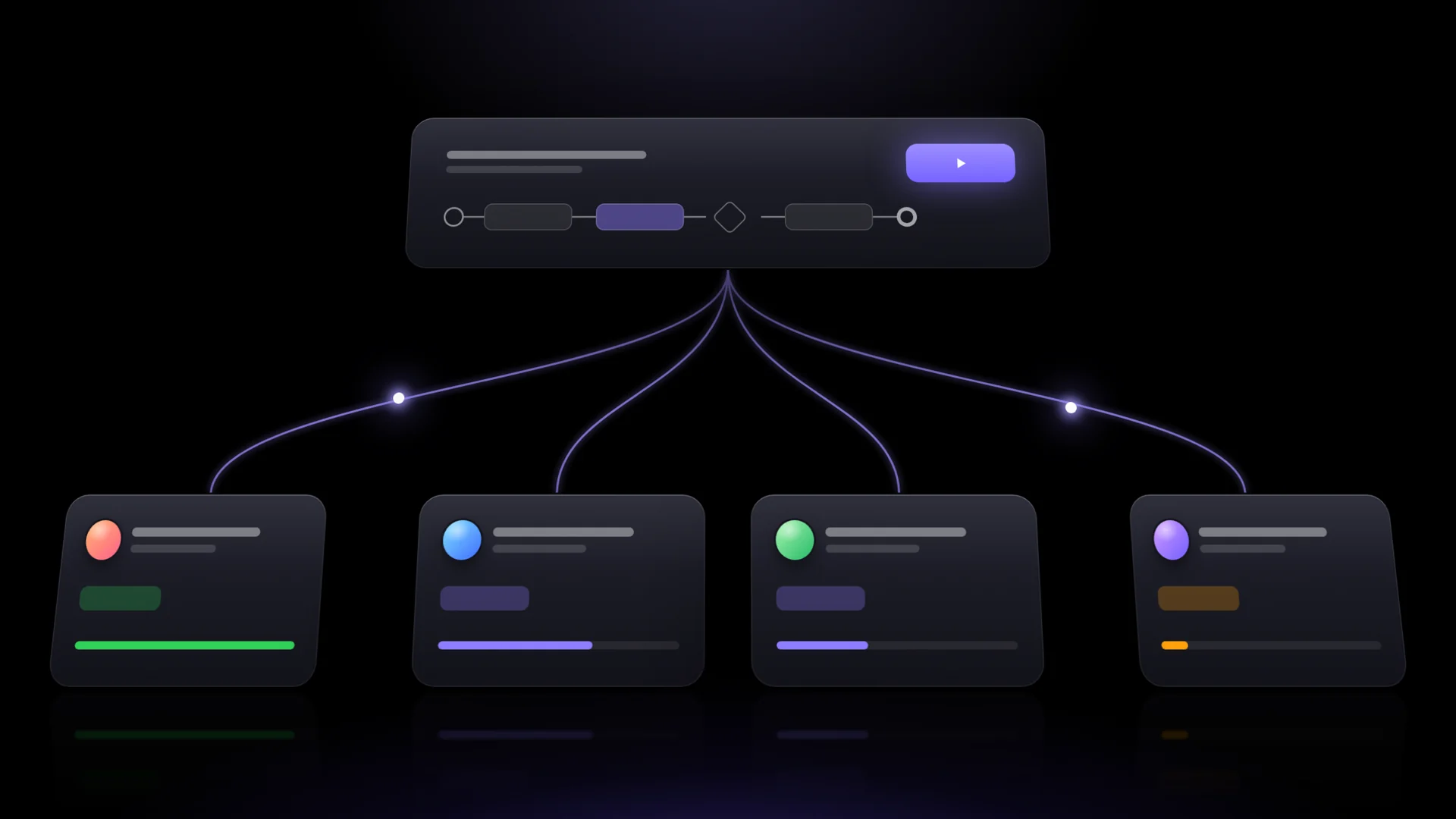
The deadline is set per step in days and counts from the moment the performer picks up the task. This shows exactly who is holding the process up.
If a document is not acceptable, the approver clicks "Reject" and must give a reason. The process goes back for rework to whoever has to fix it. Sometimes the process cannot choose a branch, for example because a field used in the condition was left empty. It does not get lost. Instead it gets the status "Awaiting decision", and an administrator routes it manually. Every task has an event log showing who did what and when.
Assignments and projects
Not everything in a company follows a diagram. A one-off assignment can be given to an employee or to a whole department, split into subtasks and discussed in comments where you can mention colleagues. If an assignment goes to another department, that department's head approves it first. A performer who is running late sends a formal deadline extension request instead of writing excuses in a messenger. Every task has a short link that is easy to forward.
Projects get a kanban board with custom columns and a timeline. Cards update for all participants in real time. A project task has a priority, a checklist, labels and several assignees. Once a day, overdue tasks are automatically raised to critical priority, so nobody can forget about them.
Everything that needs your action on one screen
The home page collects the tasks waiting for you and sorts them by deadline: overdue, today, tomorrow, this week. You can pick up or approve a task right from there. The "All tasks" section brings processes, assignments and project tasks into one feed, with the filters "Assigned to me", "Pending approval" and "Assigned to others".
Reports that show where things are stuck
Reports can be built by employee, department, project, processes or assignments. Departments can be compared with each other. A report shows the completion rate, average completion time and failed tasks. You choose the format: XLSX, PDF or CSV, with the company logo and brand colours. A large report is built in the background and sent to your email.

Calendar, knowledge base and training
The calendar shows meetings and company events and syncs with Google Calendar both ways. Employee birthdays are added to it automatically.
The knowledge base holds articles, procedures, FAQs and department documents. There you can also build a test for new employees with a pass mark and a time limit, or run a survey, including an anonymous one. Test results feed into the reports.
Org structure and access
The company structure mirrors the real one: departments, sub-departments, heads, deputies and cover during absences. Permissions are configured for each role. Companies with Active Directory can turn on sign-in with corporate accounts, and roles will be assigned by AD group.
One more detail that managers on the road like is the voice note. You press a button, speak, and the system converts your speech to text in Russian, Kazakh or English. The interface also works on a phone.
Where to start tomorrow
- Pick the one process people complain about most. Usually it is approval of invoices, purchases or leave.
- Get the participants together for an hour and draw the process as it actually runs, following the rules above.
- Move the diagram into the system and launch it in one department. After a month, compare the cycle time with what it was before.
If you would like to see how your process would look in Adeptio TaskManager, visit the product page or send us a request. We will show you the system using your own example.